|
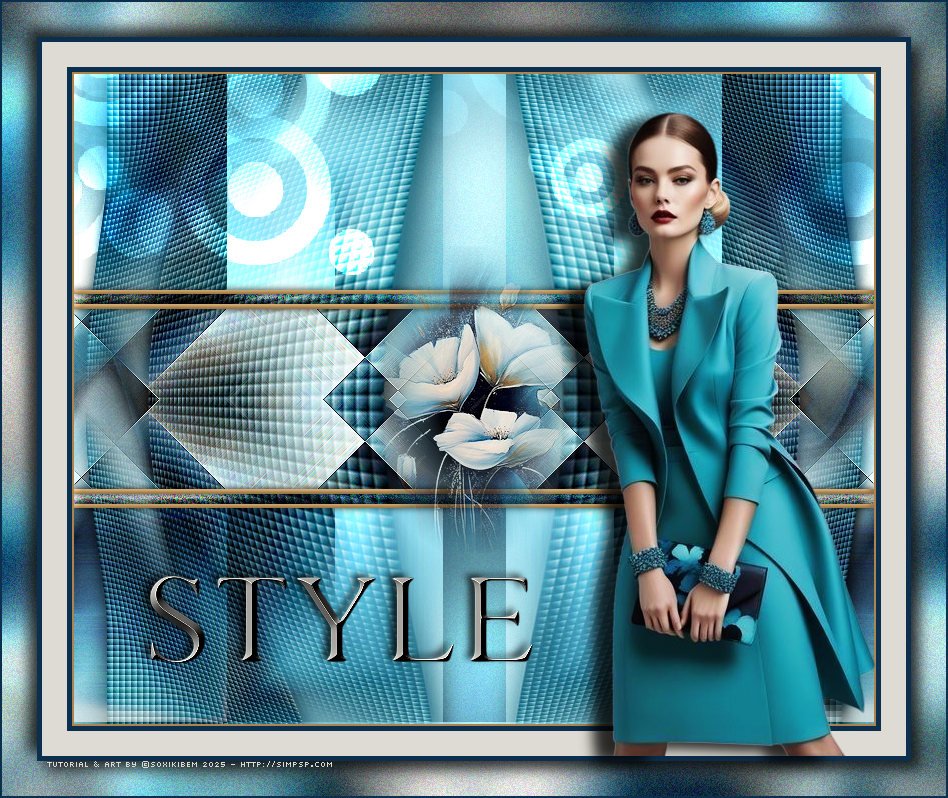
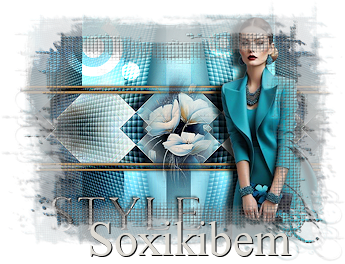
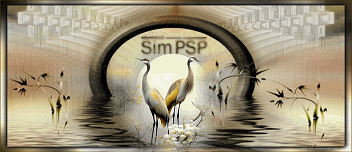
Um traço de sofisticação, um sopro de delicadeza. No encontro entre luz e sombra, formas e tons dançam em perfeita harmonia. Style é mais que um nome, é a essência da elegância que se revela em cada detalhe. TRADUÇÕES:
O Sim
PSP valoriza e reconhece o trabalho das tradutoras que tornam os
tutoriais acessíveis a diferentes idiomas.
MATERIAL: 1 Tube Principal ou Personagem à sua escolha 1 Misted Floral à sua escolha Outros Materiais by Soxikibem
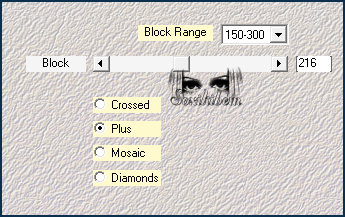
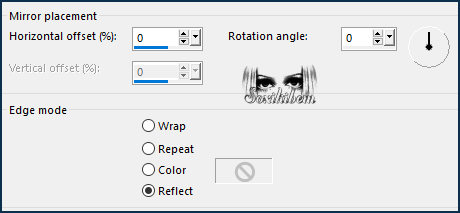
PLUGINS: Mehdi > Sorting Tiles Scribe > 4way mirror, Noisey Simple > Left Right Wrap Unlimited 2.0 > Background Designeers IV >@Night Shadow Unlimited 2.0 > Background Designeers IV > sf10 Diamond Mountain Unlimited 2.0 > Background Designeers IV >sf10 Slice N Dice Unlimited 2.0 > Background Designeers IV > sf10 Square Bumps
Tutorial elaborado no PSP 2022 Testado e revisado por Márcinha no PSP 2020.
Agradeço às Tubeiras pelos Tubes e Masks, pois sem eles não seria
possível criar este trabalho.
VÍDEO AULA
Se preferir acompanhar em vídeo no Youtube, clique no link
abaixo: Se este tutorial te inspirou: Deixe seu like Ative o sininho Compartilhe com outros amantes do PSP E deixe um comentário contando o que achou!
TUTORIAL
*Deletar a Marca D'água de todos os materiais. Cor3: #ac854e Cor 4: #dedbd4
2 - Abra uma imagem
transparente de 800x650px. Selections > Select All. Edit > Copy no Misted Floral. Edit > Paste Into Selection. Selections > Select None.
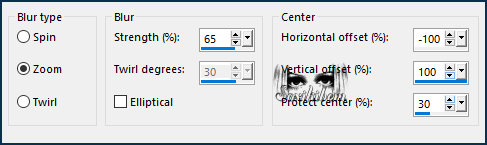
3 - Adjust > Blur > Radial Blur.
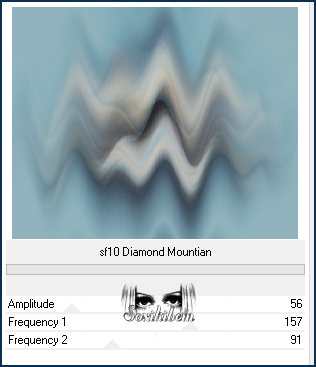
4 - Layers > Duplicate. Image > Mirror > Mirror Horizontal. Layers > Properties > General > Opacity: 50%. Layers > Merge > Merge Down. Filters Unlimited 2.0 > Backgroun Designeers IV > sf10 Diamond Mountain.
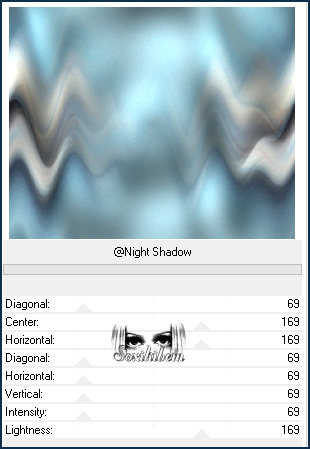
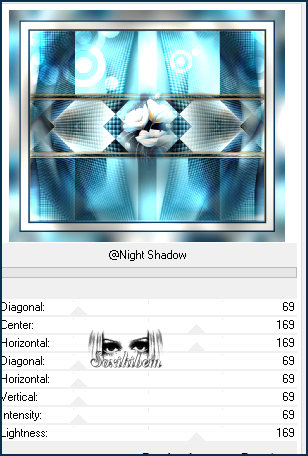
5 - Plugin Simple > Left Right Wrap. Plugin Scribe > Noisey: 24. Filters Unlimited 2.0 > Backgroun Designeers IV > @Night Shadow.
6 - Layers > Duplicate. Plugin Mehdi > Sorting Tiles.
7 - Effects > Reflection Effects > Rotating Mirror. Layers > Properties > General > Blend Mode: Hard Light.
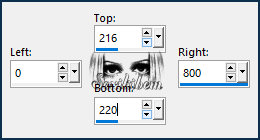
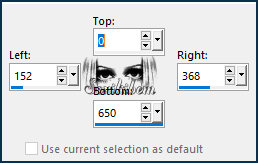
8 - Layers > New Raster Layer. Selection Tool > Custom Selection. Pintar a seleção com a cor 3. Selections > Select None. Layers > Duplicate. Image > Mirror > Mirror Vertical. Layers > Merge > Merge Down.
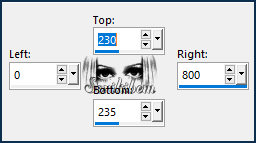
9 - Layers > New Raster Layer. Selection Tool > Custom Selection. Pintar a seleção com a cor 3. Selections > Select None. Layers > Duplicate. Image > Mirror > Mirror Vertical. Layers > Merge > Merge Down 2 vezes.
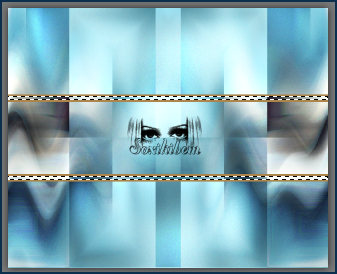
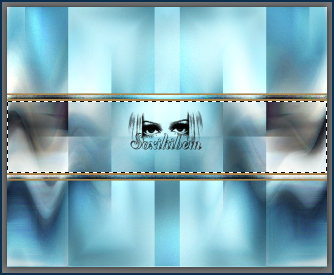
10 - Com a ferramenta Magic Wand > Tolerance & Feather: 0, selecione entre as linhas como no print abaixo.
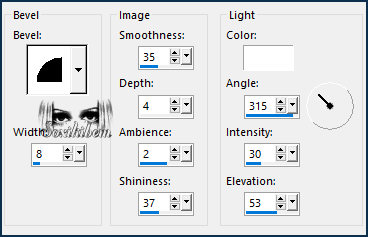
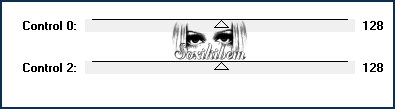
11 - Ativar a Layer Copy of Raster 1. Adjust > Blur Gaussian Blur: 20. Plugin Scribe > Noisey: 128. Effects > 3D Effects > Inner Bevel. Selections > Select None.
12 - Ativar a Layer Raster 2. Com a ferramenta Magic Wand > Tolerance & Feather: 0, selecione entre as linhas como no print abaixo.
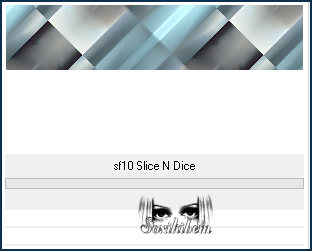
13 - Ativar a Layer Copy of Raster 1. Filters Unlimited 2.0 > Backgroun Designeers IV > sf10 Slice N Dice.
14 - Plugin Scribe > 4way mirror. Effects > Edge Effects > Enhance. Selections > Select None.
15 - Ativar a Layer Raster 1. Selection Tool > Custom Selection. Selections > Promote Selection to Layer.
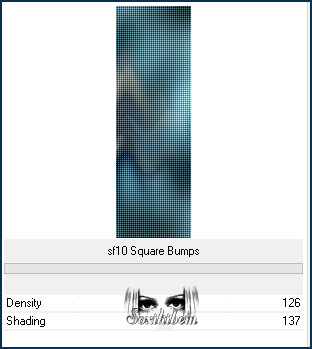
16 - Filters Unlimited 2.0 > Backgroun Designeers IV > sf10 Square Bumps. Effects > 3D Effects > Drop Shadow: 0, 0, 100, 35, cor: #000000 (preto). Selections > Select None. Layers > Duplicate. Image > Mirror > Mirror Horizontal. Layers > Merge > Merge Down. Efects > Image Effects > Seamless Tiling: Default.
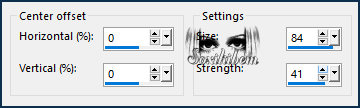
17 - Effects > Distortion Effects > Warp. * Na segunda versão eu mudei o Blend da Layer para Dodge porque usei cores mais escuras.
18 - Ativar a Layer Raster 2. Effects > 3D Effects > Inner Bevel. Effects > 3D Effects > Drop Shadow: 0, 0, 100, 10, cor: #000000 (preto).
19 - Edit > Copy no Misted Floral. Edit > Paste as New Layer. Image > Resize se for necessário, no misted do material foi de 30%. Posicione ao centro do trabalho.
20 - Edit > Copy no Decor301_Xiki. Edit > Paste a New Layer. Pick Tool: Position X: 0, Position Y: 0. Layers > Properties > General > Blend Mode: Dodge.
21 - Image > Add Borders > Symmetric: 2px com a cor 3 5px com a cor Foreground 25px com a cor 4 5px com a cor Foreground Selections > Select All. Image > Add Borders > Symmetric: 35px com a cor 4 Selections > Invert
22 - Filters Unlimited 2.0 > Backgroun Designeers IV > sf10 Slice N Dice. Adjust > Blur > Gaussian Blur: 20. Filters Unlimited 2.0 > Backgroun Designeers IV > @Night Shadow.
23 - Plugin Scribe > Noisey: 52. Selections > Invert. Effects > 3D Effects > Drop Shadow: 9, 9, 75, 20, cor preta. Effects > 3D Effects > Drop Shadow: -9, -9, 75, 20, cor preta. Selections > Select None.
24 - Edit > Copy no Tube Personagem. Edit > Paste as New Layer. Posicione e aplique efeito como preferir.
25 - Edit > Copy no Titulo301_Xiki. Edit > Paste as New Layer. Pick Tool: Position X: 134, Position Y: 562.
26 - Image > Add Borders: 2px com a cor Foreground.
27 - Se você desejar
redimensione seu trabalho.
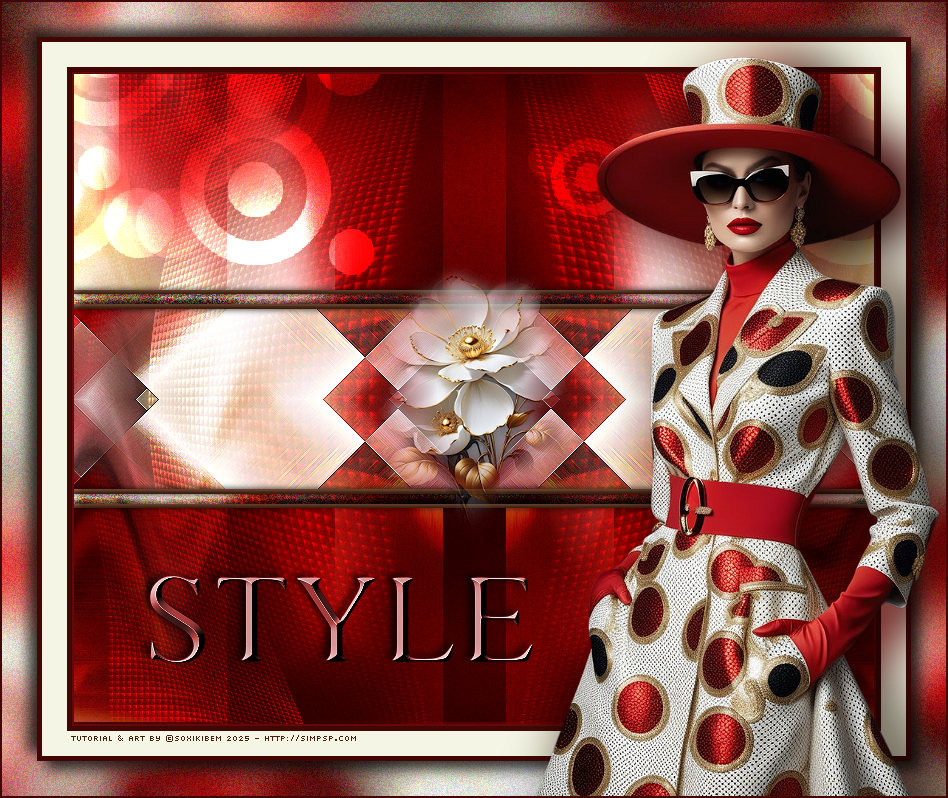
Versão 2:
Créditos Versões 1 & 2: Formatação, Arte Final e Tutorial by Soxikibem Tube Principal: Tubed by Pqna&Alice Outros Materiais: by Soxikibem
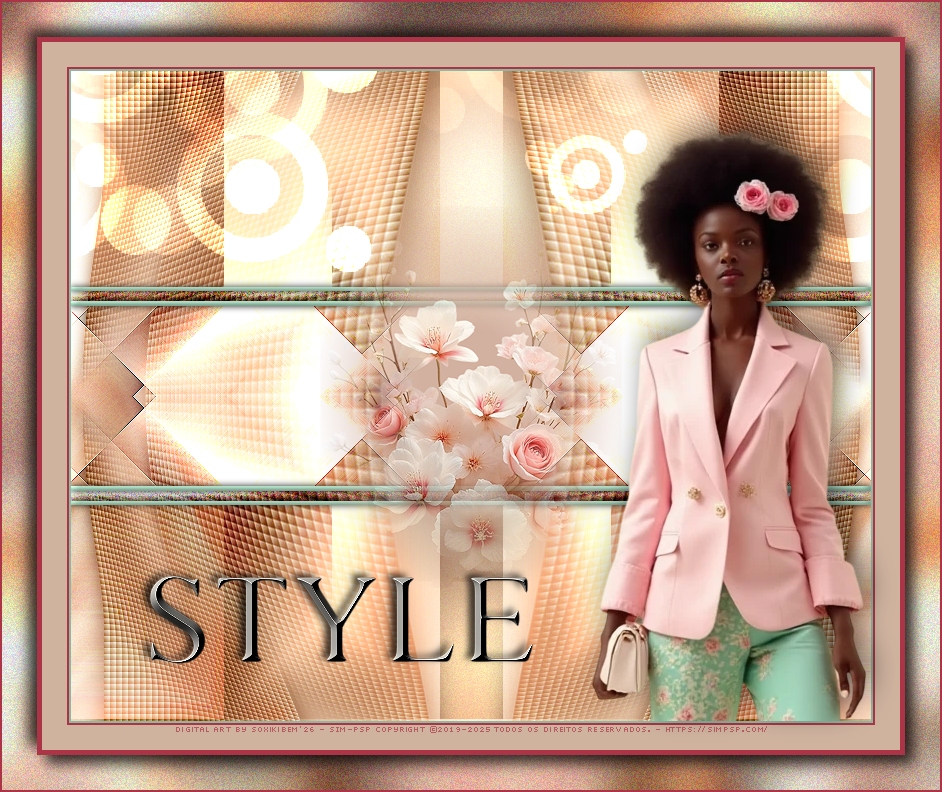
Versão 3:
Créditos Versão 3: Formatação, Arte Final e Tutorial by Soxikibem Tube Principal: Tubed by SoxikibemOutros Materiais: by Soxikibem
Sinta-se à vontade para enviar suas versões. Terei todo o prazer em publicá-las em nosso site.
Envie sua versão para o e-mail: soxikibem.simpsp@gmail.com
Soxikibem Redes Sociais
My notebooks on Amazon
My art collections on Redbubble
SimPSP Redes Sociais
|